Hybrid Classroom Setup for Schools: What Works (2026)
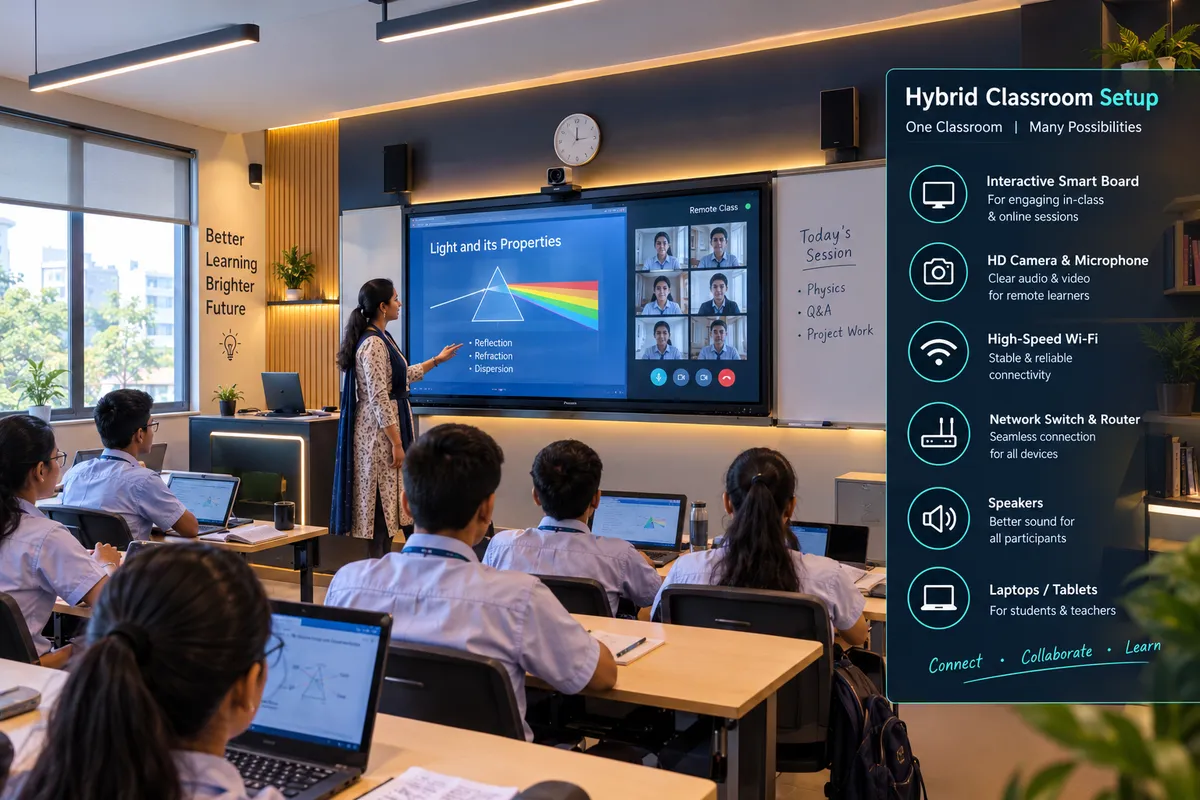
A hybrid classroom setup for a school needs five things working together: a camera that shows the teacher and board, a microphone that picks up students, speakers that carry remote voices without echo, a large interactive panel, and a network that holds a stable video call. Skimp on audio first and the whole setup fails, because remote learners forgive average video but not sound they cannot hear.
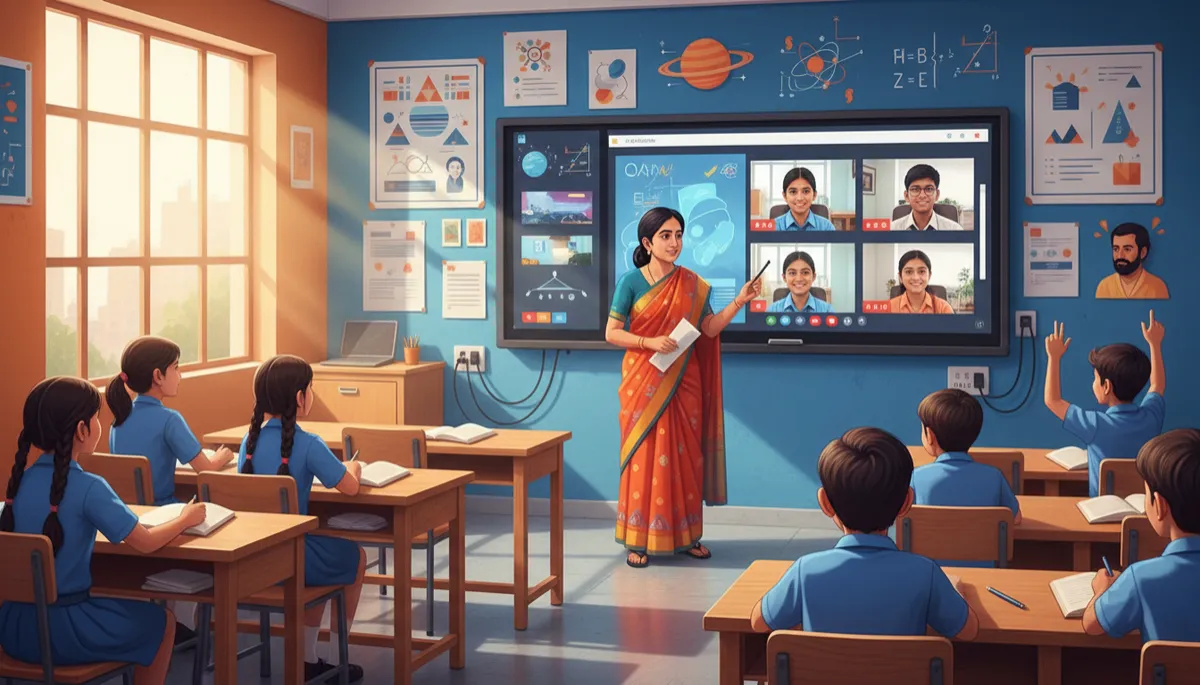
In an Indian school, "hybrid" usually means one of three things: a few absent students joining from home, a specialist teacher beaming into several branches, or a coaching batch with a remote section. The equipment is similar in each case. What differs is how much you can afford to get wrong. This guide covers the setup that works, the failures integrators report most often, and the network numbers to plan around.
The five parts of a hybrid classroom
1. Display: a panel the whole room can read
The interactive flat panel does double duty: it carries the lesson for in-room students and shows remote participants' faces. Pick the size by viewing distance, not by price; our panel specifications guide and smart classroom design guide cover brightness, anti-glare and mounting height. Keep remote participants visible on the panel or a secondary display so the teacher can see who is waiting with a question.
2. Camera: show the teacher, not the ceiling
A fixed wide-angle webcam suits a small room and a lecture-style class. It misses discussions, demonstrations and anything on the board. A PTZ (pan-tilt-zoom) camera, ideally with auto-tracking, lets the view follow the teacher without anyone operating it. Place it so the teacher stays visible to remote students, and avoid positions where desks, lights or windows block the view. Test every angle before the first class.
3. Microphones: treat them as seriously as speakers
Pair a wireless lapel mic for the teacher with ceiling or table microphones for student pickup. In a typical classroom, a single built-in mic on the panel will hear the front rows only. A frequent complaint from remote students is "we cannot hear the questions", and the cheapest fix is a habit: the teacher repeats each question before answering.
4. Speakers and echo control
Remote voices need speakers sized for the room. Without acoustic echo cancellation (AEC), the speaker output re-enters the mic and the remote side hears themselves. Software AEC in Meet, Teams or Zoom handles a small room; larger rooms need a DSP-based audio processor. Read our classroom speaker system guide for what to buy.
5. Software and teacher workflow
Set up camera switching, mic and speaker selection, screen sharing and recording in your platform (Google Meet, Microsoft Teams or Zoom) before live teaching. If the teacher needs six clicks to start a class, the system will stay unused. Aim for one-tap start from the panel.
Three setups by room and budget
Basic (small room, a few remote students): panel's built-in camera or a USB webcam, panel audio, the existing wireless lapel mic if you have one. Fine for absent-student catch-up; weak for discussions.
Standard (most classrooms): PTZ camera, ceiling or table mics, external speakers, panel with an OPS or Android option. Best value for regular remote participation.
Studio-grade (lecture hall or multi-branch teaching): auto-tracking PTZ camera, second content camera or document camera, DSP audio, dual displays, wired network drop. Needed when remote attendance is the main product.
For reference, one US guide (NearHub) puts the extras for these tiers at roughly $250-450 (budget), $1,000-1,500 (mid-range) and $2,500+ (professional), excluding the board. Those are US prices, not Indian quotes; ask your vendor for line-item prices in rupees. For the panel itself, our reference points remain interactive panels from about ₹85,000 + GST, with 65-inch units commonly ₹1.2-1.4 lakh, and a UPS at around ₹5,500. See smart classroom setup cost for the full picture.
The network: where hybrid classrooms really fail
Poor audio, unreliable cameras and lagging video make remote students disengage, and weak bandwidth is a frequent cause of dropouts. Google publishes planning figures for Meet: up to 1.7 Mbps each way for 720p video, up to 3.6 Mbps each way for 1080p, and up to 4.0 Mbps inbound in group meetings. Treat these as per-room planning numbers, then add headroom for other classrooms.
Use a wired connection for the room endpoint wherever you can. Wi-Fi is the backup.
Where you must use Wi-Fi, prefer 5 GHz over 2.4 GHz, per Google's guidance.
Avoid proxies and VPNs on meeting traffic; Google advises routing Meet outside any VPN with split tunnelling.
Open the required ports: outbound UDP 3478 and 19302-19309 for Meet audio and video, plus UDP and TCP 443.
Separate AV traffic with VLANs and prioritise it so lessons are not starved by other usage. Google advises avoiding QoS unless you can maintain it end to end, so decide this with your network integrator.
The sizing figures above come from Google's Meet documentation. For access points per room and cabling, read our school WiFi network design guide, which labels which numbers are US vendor guidance rather than Indian standards.
Common failures and how to avoid them
Single-camera blind spots: the camera shows the teacher but never the board or student demonstrations. Add a content camera or move the lesson to the panel.
Echo and background noise: unclear audio hurts participation more than average video. Fix with AEC, a proper mic and speaker layout, and a closed-door rule.
Backlighting: a teacher in front of a bright window becomes a silhouette. Use even, daylight-balanced lighting and keep the camera away from windows.
Inaudible questions: repeat each question before answering.
Two separate classes: remote and in-room students get different experiences. Use shared activities, polls and chat that both groups use.
Untested rooms: run a 15-minute mock class with a remote tester before launch.
A 5-point checklist before you buy
Which of the three hybrid cases is this room: absent students, specialist teacher, or a remote section?
Can the vendor show a live demo with a remote participant on your Wi-Fi or wired network?
Is the camera PTZ, and does it track the teacher?
Is echo cancellation included, and where do the mics sit?
Is the panel Android or OPS-capable? Compare in our Android vs OPS panel guide.
Frequently Asked Questions
What equipment do I need for a hybrid classroom?
You need an interactive panel, a camera that shows the teacher and board, microphones for the teacher and students, speakers with echo cancellation, a stable network and a meeting platform such as Google Meet or Teams. Of these, audio is the part schools most often underbuy, and it decides whether remote students stay engaged.
Is a normal webcam enough for hybrid teaching?
For a small room and a few absent students, yes. A fixed wide-angle webcam covers a lecture-style class but misses board work and student discussions. For regular remote participation, a PTZ camera with auto-tracking follows the teacher without manual control and gives remote students a far better view of the lesson.
How much internet bandwidth does a hybrid classroom need?
Google's Meet figures are up to 1.7 Mbps each way for 720p and up to 3.6 Mbps each way for 1080p, with group meetings needing up to 4.0 Mbps inbound. Plan per room, add headroom for other classrooms using the network, and use a wired connection for the classroom endpoint where possible.
Why do remote students say they cannot hear the class?
Usually a single mic is too far from students, or echo cancellation is missing. Add ceiling or table microphones, give the teacher a wireless lapel mic, and have the teacher repeat each student question before answering. Check speaker volume and placement during a mock class, not on the first live day.
Can an interactive flat panel run a hybrid class by itself?
Often, in a small room. Many panels have a built-in camera and microphone and run Meet or Teams directly, which suits basic hybrid use. For larger rooms or regular remote teaching, the built-in parts are usually not enough, and an external PTZ camera and room microphones give a noticeably better result.
Plan a hybrid classroom with AVM Infotech
We will look at your room, your network and your timetable, then propose a hybrid setup in writing with line-item prices, so you pay for what the room needs and nothing more. A live demo with a remote participant is the best test before you buy.
Call us on +91 99814 44724 or visit avminfo.in to arrange a site visit and demo.
Network figures: Google Meet network requirements. Setup guidance draws on integrator and vendor guides; US price tiers are indicative only.

