School WiFi Network Design for Smart Classrooms (2026)
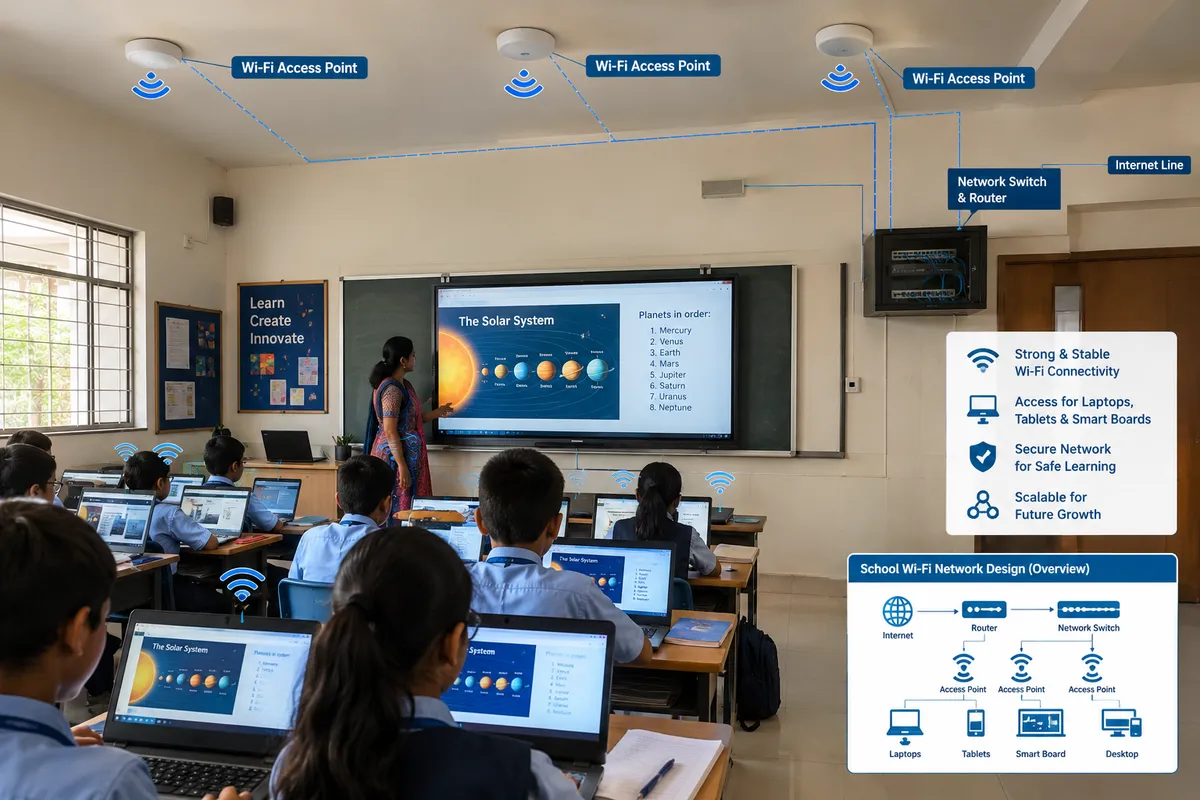
Plan two ceiling-mounted access points per classroom of 20 to 40 students, wired back to a gigabit PoE switch, and size the internet link at roughly 1 to 2 Mbps per student for everyday use and 5 to 10 Mbps for video or online tests. Most "the smart classroom is slow" complaints are not about the panel; they come from one WiFi router in the corridor trying to serve six rooms.
This guide gives you numbers you can put into a purchase order, tells you which ones come from vendor guidance and which from public-sector standards, and flags what we could not source. It is written for principals and admin heads buying or fixing the network behind interactive panels, tablets and online assessments.
Why the network is the part schools underspend on
A panel, a projector or a tablet cart is visible, so it gets budget. Cabling and access points are invisible, so they get whatever is left. The gap is real: UDISE+ 2024-25 data, which we cited in our smart classroom design guide, put internet availability at 63.5% of schools and computers at 64.7%. Even where a connection exists, it is rarely designed for a room full of devices.
If your panels are Android-based and depend on cloud apps, read our note on Android vs OPS panels first: the type of panel changes how much traffic each room pulls.
Step 1: Count devices and plan the traffic, not the router
Start with what actually connects at the same time in one room:
- Teacher side: the interactive panel, a teacher laptop or phone, and sometimes a document camera or wireless casting.
- Student side: tablets or laptops during specific periods, plus phones that students bring against the rules.
- Background: software updates, cloud sync and CCTV or attendance devices if they share the same network.
Two reference points for sizing, both from outside India and so a starting point rather than a rule:
- The U.S. FCC goal is 1 Mbps per student, and SETDA guidance cited by EdTech Magazine goes up to 2.8 Mbps per student at peak, with standardised testing as the example (EdTech Magazine, June 2025).
- Florida's Department of Education wireless guidance asks for external internet of at least 100 kbps per student and an internal school network of at least 1,000 kbps per student (FLDOE wireless specifications).
Note the difference: the internal network must be fast; the external link can be much smaller if lessons use local or cached content. That is the main lever for schools on a modest connection.
Step 2: Access points per classroom
Two sources agree on the direction, with different numbers:
- Florida guidance: 10 to 15 students or fewer per access point in a classroom, noting that the enterprise rule of 15 to 20 clients per AP may not hold at school peaks, so two APs may be needed for 20 to 30 students.
- Zyxel's smart classroom deployment guide (vendor document): a baseline of 20 students per classroom, 40 to 60 Mbps total per room and two APs, with the second AP sharing load and taking over if one fails (Zyxel guide).
Practical reading for an Indian classroom of 30 to 40 students: two APs per room for rooms that will run tablets or online tests, one good AP for rooms where only the teacher's devices and the panel connect. Keep each AP at least 3 metres from the next, mount on the ceiling, and keep them fixed (Zyxel's guidance). Their test results show why density matters: 15 tablets on one 5 GHz AP downloaded a 200 MB file in 16 minutes 30 seconds, and 30 tablets on one AP took 31 minutes 50 seconds.
Step 3: Radio settings that stop rooms interfering
The 2.4 GHz band has only three non-overlapping channels (1, 6 and 11) and is crowded by neighbouring APs and household devices. The 5 GHz band has many more channels, so choose dual-band access points and push student devices to 5 GHz. Zyxel also suggests lowering transmit power by 25 to 50% so a device stays on its own classroom's AP instead of a neighbour's. Ask your integrator to do this from a proper survey, not by default settings.
Step 4: Cabling and switching: the part you cannot fix later
- Wired backhaul: every AP runs on an Ethernet cable to a switch. Wireless mesh between rooms halves capacity and fails in concrete buildings.
- Gigabit PoE switches: one cable powers and connects each AP, so there are no adapters in the ceiling. Zyxel specifies Gigabit Ethernet and Gigabit PoE.
- Wire the panel too: where possible, connect the interactive panel by Ethernet. It keeps its traffic off the airwaves and frees WiFi capacity for student devices. This is our practice recommendation, not a published standard.
- Cable category and test reports: we did not find an authoritative single figure in the sources we reviewed, so ask your integrator to state the cable category and hand over a test report for every run.
- Power backup: put the core switch and router on a UPS. A panel that stays on while the network goes dark helps no one.
Step 5: Separate networks and set limits
Use separate SSIDs and VLANs for staff, students and guests. Add a content filter and apply per-device rate limits so one student's download does not starve a class. Zyxel's example is limiting each student to 2 Mbps, which stops peer-to-peer abuse while leaving normal browsing intact.
A worked example, with labelled assumptions
This is illustrative arithmetic, not a quote. Assume a school with 20 classrooms, each with an interactive panel and a teacher streaming video at about 5 to 10 Mbps (Zyxel's planning range for video), and four rooms running a 30-tablet online test at the same time at 2 Mbps per tablet.
- Teacher video, 16 rooms at about 10 Mbps: about 160 Mbps
- Online test, 4 rooms x 30 tablets x 2 Mbps: 240 Mbps
- Peak demand: roughly 400 Mbps, which many school connections cannot supply.
The fixes are cheap compared with a bigger link: stagger test periods, cache or pre-download videos and updates overnight, and use offline-capable content. The right internet plan comes from your measured peak, not from a guess.
What to put in the vendor quote
- A site survey report with a heat map before installation and a post-install verification report.
- Access point count per room, with the simultaneous-device target for that room.
- Switch model and PoE budget, cable category, and test results.
- Controller or cloud management, with the licence term stated (some APs lose features when licences expire).
- Warranty and support response time, in writing.
For how this fits into the full room budget, see our smart classroom setup cost breakdown, the panel specifications explained, and how teachers use the panel day to day in digital board for teaching. If your school also plans a robotics or STEM lab, the network needs are lighter and covered on grobots.in.
Frequently asked questions
How many WiFi access points does a classroom need?
For rooms where students use tablets or laptops, plan two ceiling-mounted access points per classroom of 20 to 40 students. Florida's guidance suggests 10 to 15 students per access point, and Zyxel's baseline is two APs for 20 students. For rooms where only the teacher and the panel connect, one well-placed access point is usually enough.
How much internet bandwidth does a smart classroom need?
Plan about 1 to 2 Mbps per user for general use and 5 to 10 Mbps per user for video, voice or online testing, per Zyxel's guide. U.S. benchmarks are 1 Mbps per student (FCC goal) up to 2.8 Mbps at peak (SETDA). Measure your real peak, then reduce it with caching and staggered test schedules.
Should interactive panels connect by WiFi or by LAN cable?
Use a LAN cable wherever you can. A wired panel keeps its traffic off the wireless network, so student devices get more capacity, and it avoids signal drops mid-lesson. WiFi is a reasonable backup for rooms where cabling is not possible, but then count the panel as one more device in your design.
Is a mesh WiFi system good enough for a school?
Home-style mesh systems relay traffic wirelessly between nodes, which cuts capacity and struggles through concrete walls. Schools should use wired access points on PoE switches with central management. Mesh can serve as a stop-gap in a small building, but it should not be the design for a 20-classroom school.
What should a school ask a vendor before buying WiFi for smart classrooms?
Ask for the number of devices supported per room, a site survey with a heat map, access point and switch models, cable category with test reports, controller licence terms, and written warranty and response times. A vendor who quotes only "WiFi 6 routers" without these has not designed a classroom network.
Need a network that survives a full timetable?
AVM Infotech designs the whole classroom stack: panels, audio and the network behind them. Tell us the number of rooms and the devices you plan to use, and we will give you a room-by-room plan with the access point count and the cabling spec before you commit.
Talk to AVM Infotech: use the contact details on avminfo.in to call us or request a site visit.
By Anand Ingle, AVM Infotech. Sizing figures come from the linked vendor and government sources; they are guidance, not guarantees. A site survey decides your final design.

