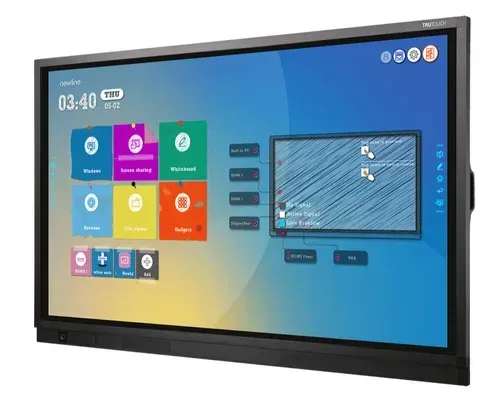
Digital Board for Teaching: A Practical Classroom Guide
A digital board for teaching is an interactive flat panel, a large touch display with its own computer, whiteboard software and speakers built in that a teacher writes on, annotates over and runs a whole lesson from without a laptop or projector. Buying one is the easy part; the board only pays for itself when teachers change how they run the lesson and that is a training and timetable problem, not a hardware problem.
This guide is about the second part. Not spec sheets and brand comparisons, but what teachers actually do with a digital board, why so many end up used as expensive projector screens, and how to run a rollout that sticks.
What the board actually replaces
A digital board consolidates four things schools already own and maintain separately:
The projector and screen - no lamp replacement, no dimming the room, no keystone drift
The whiteboard and markers - infinite pages, saved and shareable at the end of the period
The teacher's laptop trolley - Android is built in, so most lessons need no external device
Classroom speakers - adequate for a standard room, though a 70-plus-student hall still needs separate audio
That consolidation is where the real return sits. Fewer devices means fewer failure points and a teacher who does not have to book a trolley and find an HDMI cable is a teacher who will use it in period one on Monday.
The failure mode: a ₹1.3 lakh projector screen
Walk into a school two years after a digital board rollout and you can usually sort classrooms into three groups. A few teachers use the board fully. Most use it to display PDFs of the textbook. Some have gone back to chalk because the board is on a login screen nobody remembers the password to.
The pattern is consistent, and none of the causes are hardware:
No content ready on day one. The board arrives empty. A teacher with 35 minutes to prepare will open a PDF, not build an interactive lesson.
One training session, at handover. Ninety minutes of vendor demo in June is forgotten by August.
Nobody owns it. When the pen stops responding, there is no named person and no ticket path, so the board quietly stops being used.
Accounts and passwords are a mess. Shared logins, no school email, no cloud storage so nothing a teacher makes survives to the next period.
The mount is wrong. Too high to write on comfortably, or facing a window and the board becomes a display-only device by default.
Nine lesson workflows that actually work
These are the uses that teachers keep doing after the novelty wears off, roughly in order of how quickly they get adopted:
Low effort, adopted in week one
Annotate over anything: open a textbook PDF, a photograph or a map and write on top of it in ink, then erase back to the clean page
Save and send the board: export the period's working as a PDF or image and share it with absentees and the class group
Play and pause a video mid-explanation: freeze a frame, draw on it, resume, far more useful than playing a clip end to end
Pull up a diagram on demand: answering "what does that actually look like" in ten seconds instead of "look it up at home"
Moderate effort, adopted by mid-term
Split screen: question on the left, student working on the right, the single most useful feature in a maths classroom
Students at the board: two or three at once on a multi-touch panel, working the same problem different ways
Screen mirroring from a phone or tablet: a student's notebook page or lab result on screen in seconds, with no cable
Higher effort, worth building toward
A reusable lesson bank: departments build and share files once, then reuse them across sections and years, this is where the workload actually falls
Quick formative checks: a three-question poll or quiz at the end of the period that tells the teacher what to reteach tomorrow
Note what is missing from that list: elaborate 3D simulations and gamified content. They demo brilliantly and get used twice a year. Build your case on annotation, split screen and the shared lesson bank.
The first 30 days: a rollout that sticks
The difference between a used board and an ignored one is almost entirely decided in the first month.
Before installation
Decide mount height by writing height, not sightlines: the bottom of the active area should sit roughly 75–85 cm from the floor so an average teacher can write across the full board without reaching
Check the wall for glare; never directly opposite an uncurtained window
Get school email accounts and cloud storage sorted first, so teachers save work to their own account from day one
Confirm a dedicated power point and a UPS; expect around ₹5,500 for a suitable unit
Week 1
Two short sessions, 45 minutes each, hands-on, maximum 8 teachers per group. Cover only: switch on, write, erase, annotate a PDF, save and share
Name a board champion per floor; a teacher, not the IT person and tell everyone who it is
Weeks 2-3
Each department loads five ready lessons into a shared folder. Five, not fifty
Run one peer demo per department in the staff meeting, a teacher showing a teacher beats any vendor demo
Week 4
Second training round, now on split screen, mirroring and quizzes, once the basics are automatic
Walk the classrooms and ask two questions: what do you use it for, and what stops you using it more. Fix the second answer
Structured teacher development helps here too, NCERT's DIKSHA platform, run by CIET, carries free digital-pedagogy and ICT courses that pair well with an in-school rollout.
Honest 2026 prices
Panels start from around ₹90,000 including GST for an entry configuration. Most Indian schools land in the ₹1.2–1.5 lakh range for a 65" or 75" panel with a usable Android build, adequate touch response and a real warranty. Indicative bands seen across the market in 2026:
65": roughly ₹90k -1 lakh, standard classrooms up to about 30 feet deep
75": roughly ₹1.5 -1.35 lakh, the most common school choice
86": roughly ₹1.40 - 1.55 lakh, large rooms, lecture halls, labs
*Indicative only. Actual pricing varies by brand, configuration, GST treatment and order quantity, ask for a written quote against a written spec.
Costs that show up after the invoice and belong in the budget: wall mount and installation, a UPS per room, electrical point extension, AMC after the warranty period and the teacher time for training. We break the whole room down in our smart classroom setup cost guide and list what else belongs in the room in the smart classroom equipment checklist.
What to write into the purchase order
Most digital board disappointments are contract failures, not product failures. Insist on these in writing:
Onsite warranty, stated in years, with a defined response time, not "warranty as per manufacturer"
Training days included, split across at least two visits, one at handover and one four to six weeks later
A named support contact and an escalation number
Windows version stated explicitly if an OPS module is included
Whiteboard software licence terms: perpetual or subscription, and what happens at renewal
Frequently asked questions
What is a digital board for teaching?
It is a large interactive touchscreen display, typically 65 to 86 inches, with a built-in computer, whiteboard software, speakers and connectivity. A teacher writes on it with a pen or finger, opens and annotates documents, plays video, mirrors a phone or tablet and saves the lesson at the end. In practice the terms digital board, smart board and interactive flat panel are used interchangeably in Indian schools for the same device.
Which size digital board should a classroom have?
Match the size to the depth of the room and the smallest text you expect students to read. As a working rule for standard instruction, the furthest student should sit no more than about six times the screen height away. In practice that puts 65 inch panels in classrooms up to roughly 30 feet deep, 75 inch in most standard school classrooms, and 86 inch in large rooms and lecture halls. Check the back row before ordering.
Do teachers need training to use a digital board?
Yes, and one session is not enough. Schools that get real usage run short hands-on sessions in small groups, then a second round three to four weeks later once basics are automatic. Cover only writing, annotation and saving in the first session. Naming a teacher champion per floor matters more than the length of the training, because the questions that block adoption arrive mid-lesson, not during a workshop.
Can a digital board work without internet?
Yes for the core teaching functions. Writing, annotating saved files, playing local video and using the built-in whiteboard all work offline. Internet is needed for streaming, cloud saving, screen mirroring over Wi-Fi, app downloads and firmware updates. Schools with unreliable connectivity should plan for local storage on a USB drive and check that the whiteboard software does not require a live licence check to open.
How long does a digital board last?
The panel itself is generally rated for tens of thousands of hours of use, which is comfortably beyond a normal school day cycle, and five to eight years of service life is a reasonable planning assumption. What usually ages first is the built-in Android compute and its software support, which is why an empty OPS slot is worth having even if you do not fill it on day one. Plan a refresh cycle rather than waiting for failure.
Digital board or projector for a school classroom?
For most classrooms the panel wins on total cost over five years once lamp replacements, dimming, maintenance and lost teaching time are counted. Projectors still make sense for very large halls where the throw distance and image size a panel cannot match matter more than touch interaction, and where the room is already darkened. If teachers will interact with the content, a panel is the right answer.
Getting it right in your school
The schools with the highest digital board usage are rarely the ones that bought the most expensive panel. They mounted it at writing height, sorted logins before handover, trained in small groups twice, and gave every floor a teacher to ask. If you want a room-by-room plan for your school; sizing, mounting, power and a training schedule your teachers will actually complete, talk to us.
Call AVM Infotech on +91 88151 12233 | Request a classroom demo
Related reading: All about smart classrooms · 21st century learning vs traditional education. Setting up a skill or robotics lab as well? See Grobots Composite Skills Lab.

